Using the MCP extension in Azure Functions
This blog will explore the use of the MCP extension in Azure Functions. I will show you how to do the following:
- Create a simple MCP server that exposes a single tool called
get_pet_details. This tool will take in properties such aspetNameandpetType. - Run the MCP server locally on localhost and interact with the tool in Visual Studio Code.
- Deploy the MCP server to Azure. At this stage, we will enable Microsoft Entra ID authentication on the MCP server and specifically allow only the Visual Studio Code client to interact with the tool.
Firstly, all the code can be found here today: https://github.com/georgeollis/azure-functions-mcp/tree/main
Azure Functions provide an MCP tool trigger that allows you to expose tools through the Azure Functions programming model. If you already have experience with Azure Functions, this is an excellent way to begin creating MCP servers and exposing the tools your business may need.
In our basic example, we will be exposing a single tool called get_pet_details. Which looks like this:
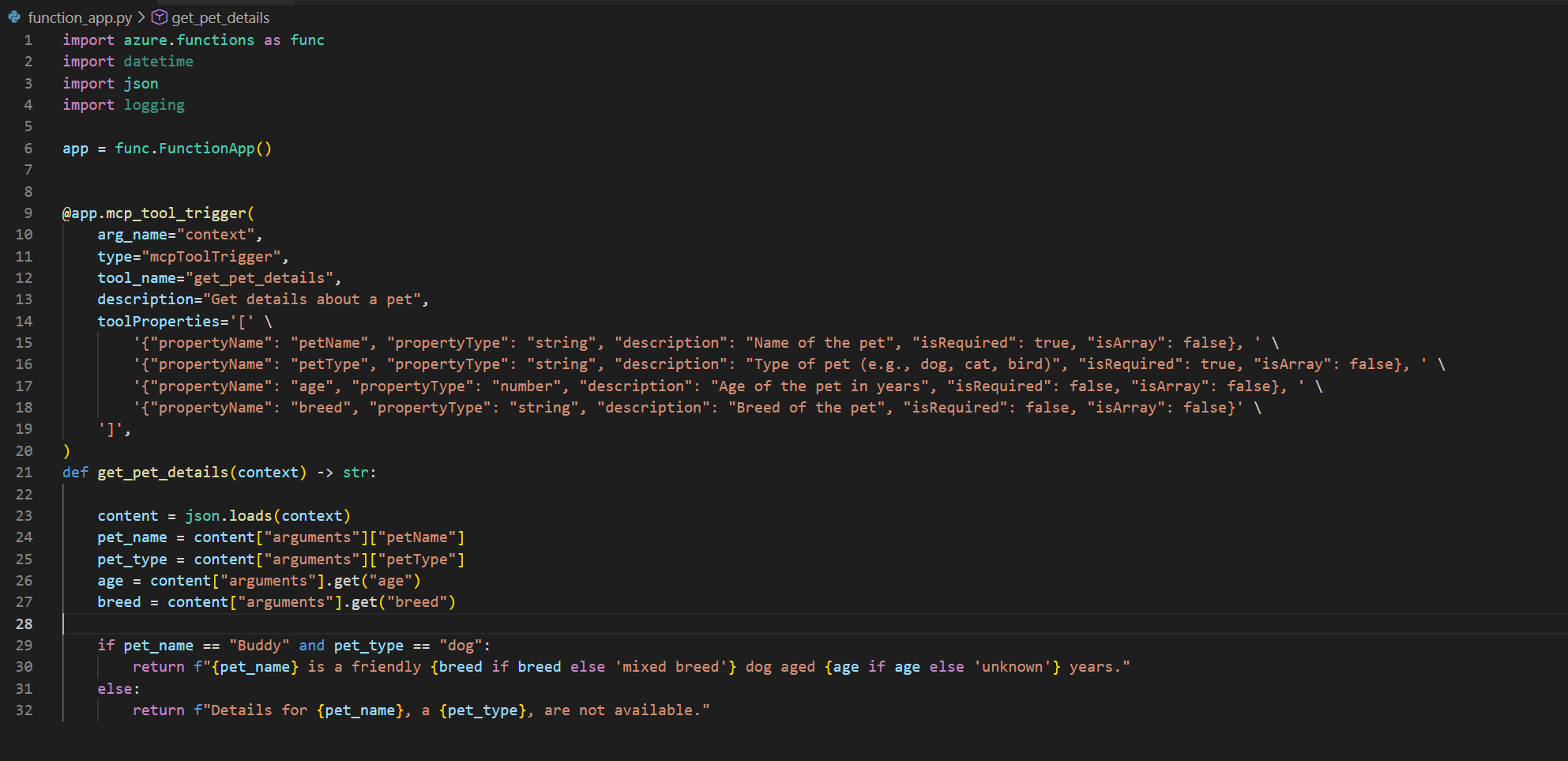
The code is straightforward. If the pet is a dog called Buddy, it will return a string stating that the dog is friendly. If no breed or age is provided, it will default to "mixed breed" and "unknown years". If you ask about any other type of pet, it will simply respond that the information is not available.
Of course, this is just one basic example. You could connect to a database, integrate with Azure AI Search, or extend the functionality in countless other ways. The possibilities are practically endless!😄
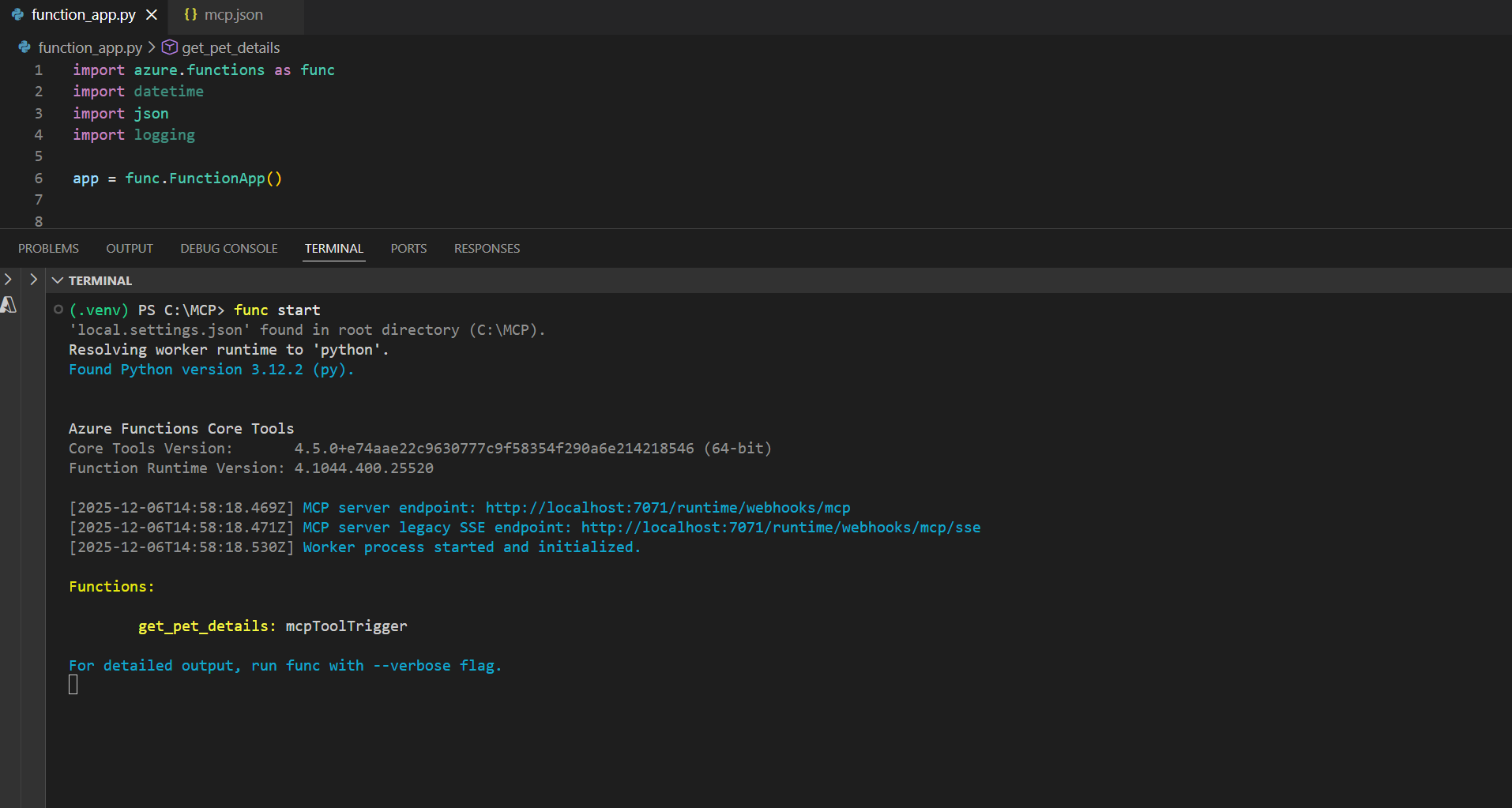
In today's testing, we will use Visual Studio as our MCP client. If you have the Azure Functions Core Tools installed, you can run this MCP server locally so it is exposed on localhost. Which you can see here:
If we open the MCP configuration in Visual Studio Code, we can add our new MCP server endpoint to the list and test it. You can use the MCP shortcuts provided, specifically the one called MCP Open User Configuration, to access this JSON file.
{
	"servers": {
			"my-azure-function-2": {
			"url": "http://localhost:7071/runtime/webhooks/mcp",
			"type": "http"
		}
	},
	"inputs": []
}
When the MCP client connects to the MCP server, one of the first steps is tool discovery. This process ensures that the client knows exactly which tools are available, what they do, and how to call them.
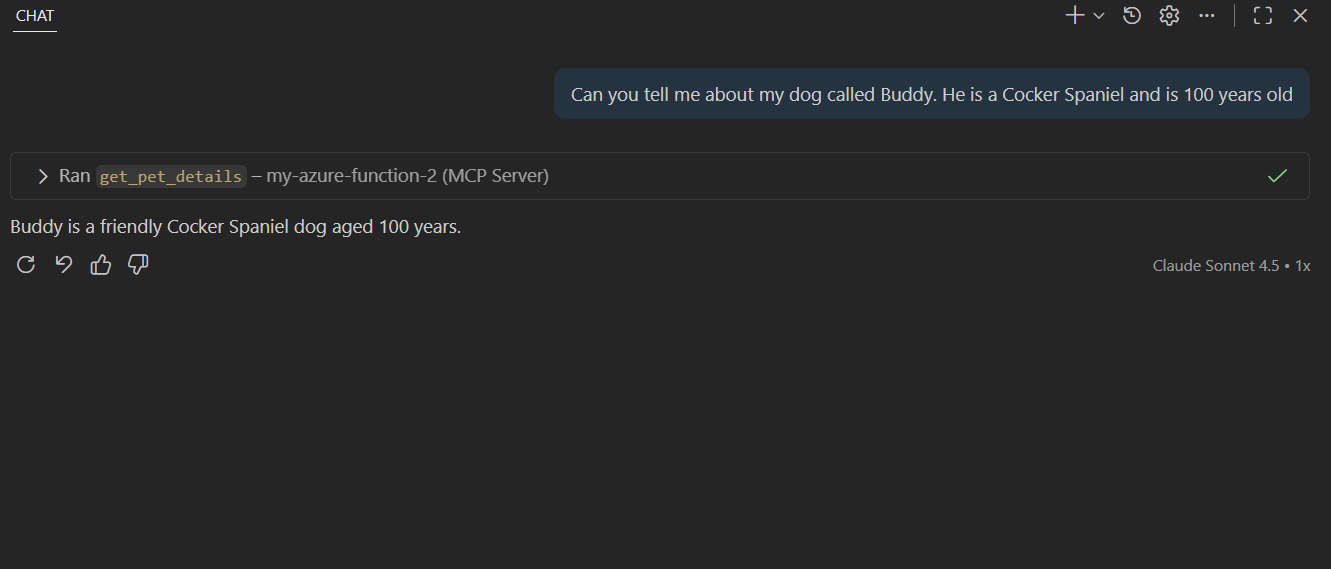
Bringing up GitHub Copilot and asking a question. We can see the client is attempting to call the MCP server.
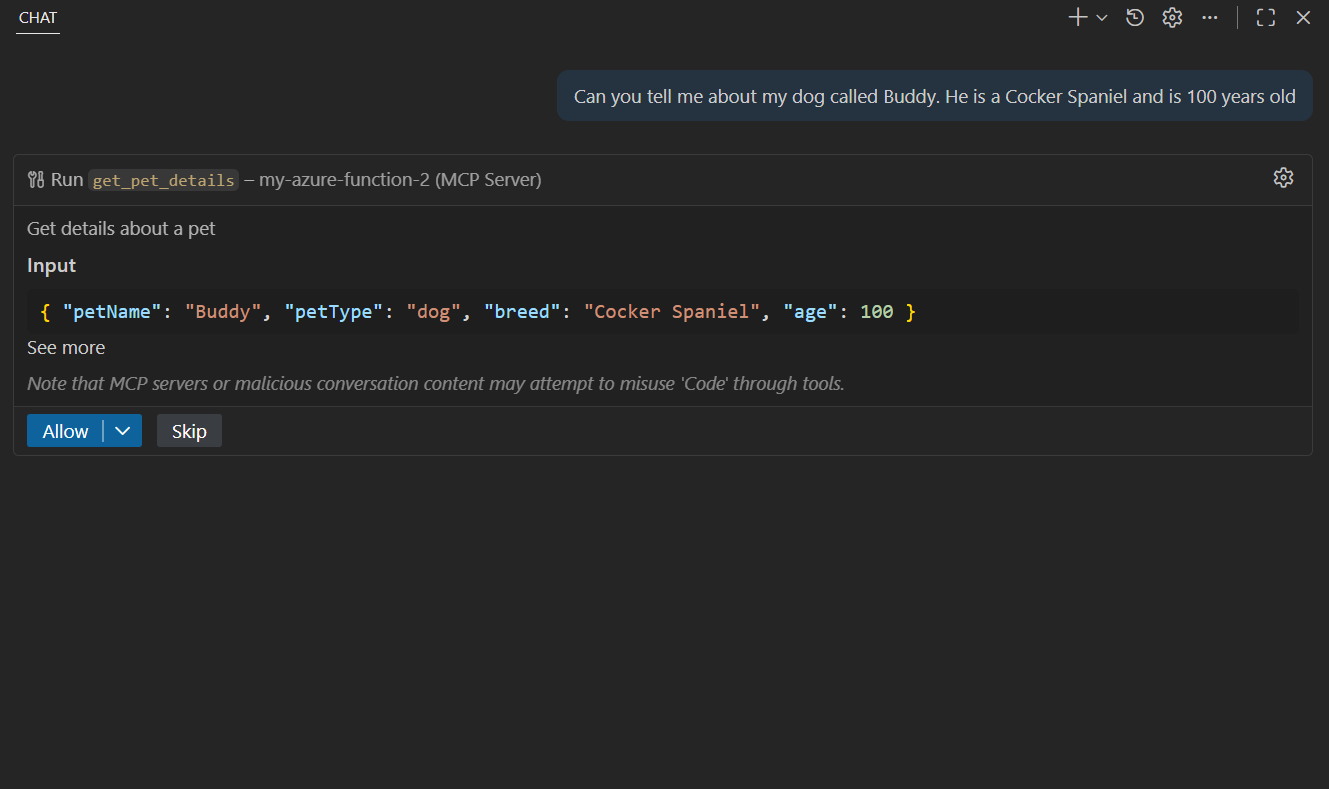
Allowing the tool to be invoked shows us the expected response.
How about another question?
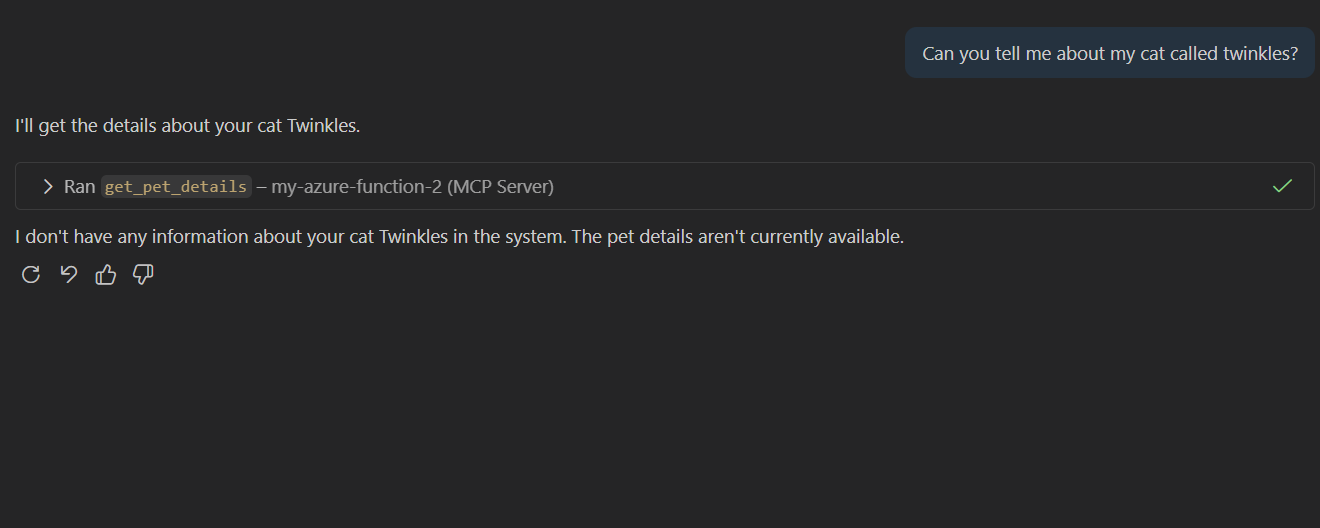
Looks pretty spot on. Let us deploy this to Azure if you don't know how to deploy to Azure Functions. I created another blog that covers this: https://www.georgeollis.com/deploying-code-to-azure-functions-flex-consumption/
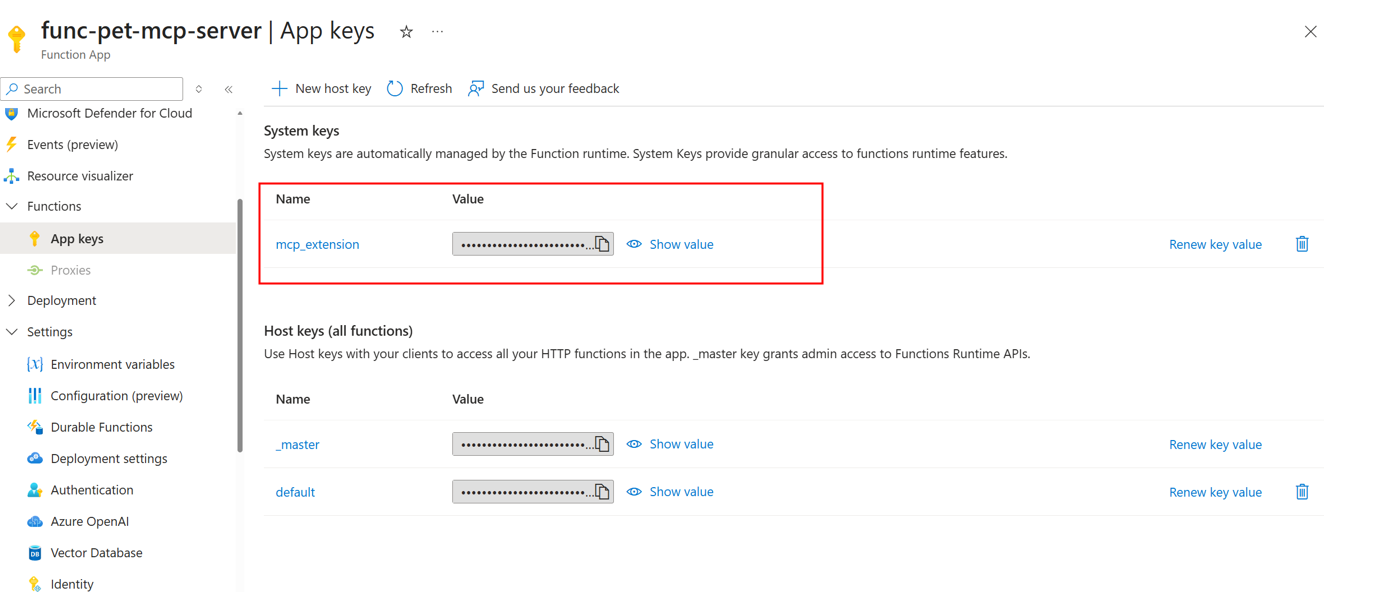
When deploying to Azure, the default configuration is that the extension generates an API key, which is required when interacting with your MCP server. So our MCP User Configuration would look something like this.
{
	"servers": {
			"my-azure-function-2": {
			"url": "http://func-pet-mcp-server-a9azg6a0f2g7aaek.uksouth-01.azurewebsites.net/runtime/webhooks/mcp",
			"type": "http",
            "headers": {
                "x-functions-key": "XXXXXXXX"
            }
		}
	},
	"inputs": []
}
The key can be viewed in the Azure Portal.
However, what if we want to use an identity provider instead? Something like Microsoft Entra ID?
Configuring Microsoft Entra ID
Since the Azure Function is already deployed, you can proceed to configure it. Enable Microsoft authentication from the authentication blade.
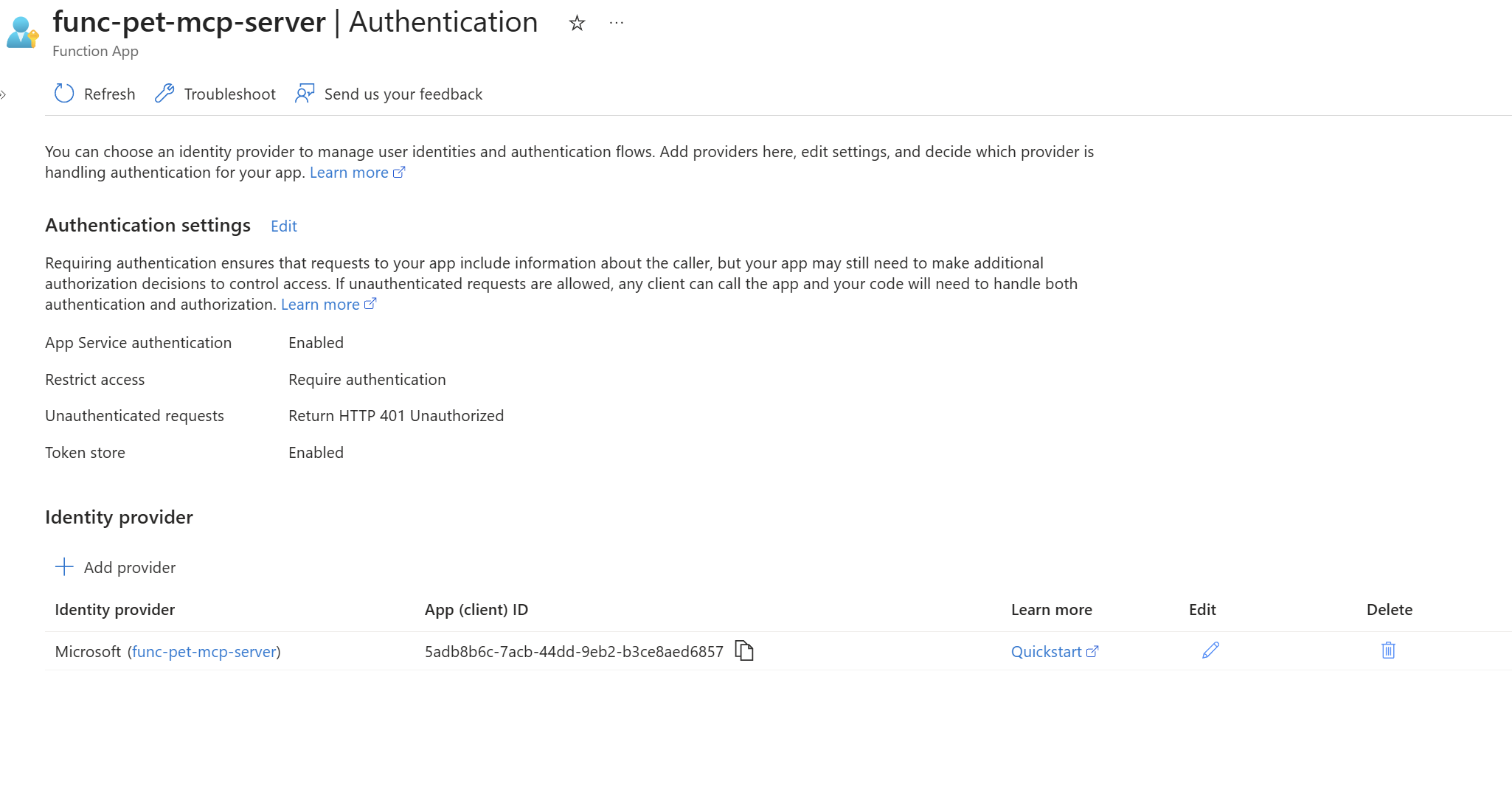
Use the following authentication settings.
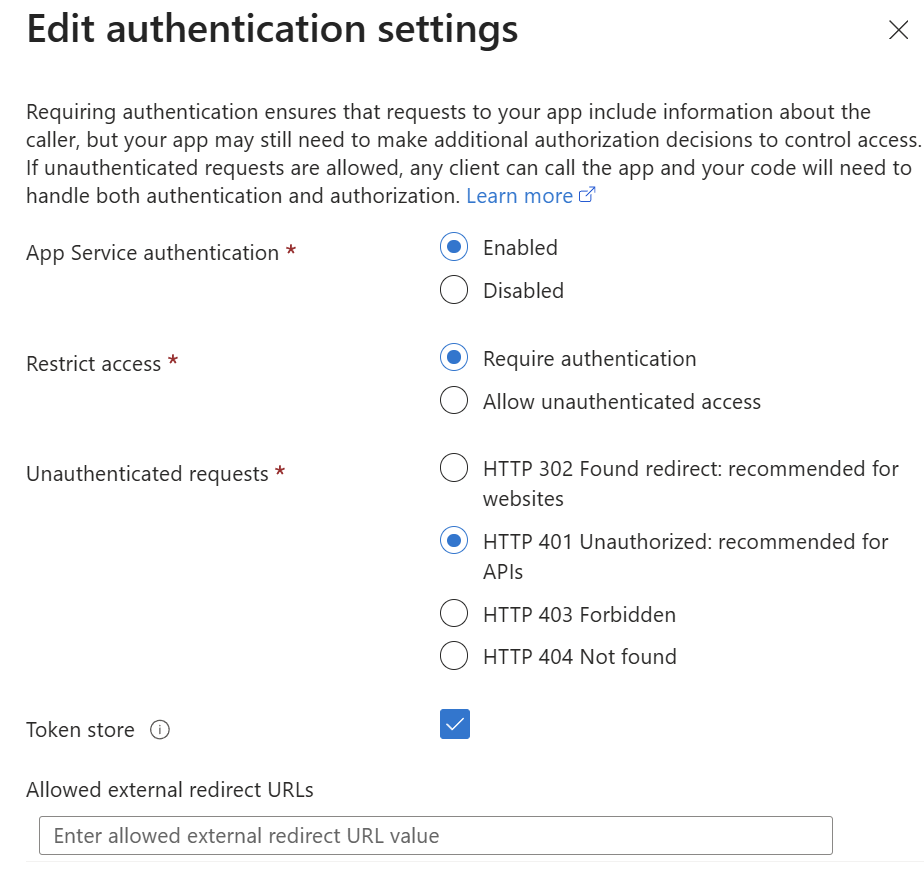
- Enable App Service authentication.
- Set restricted access to require authentication.
- An HTTP 401 error should be returned for any unauthenticated request.
- Enable the token store.
When deploying or editing the identity provider, do the following:
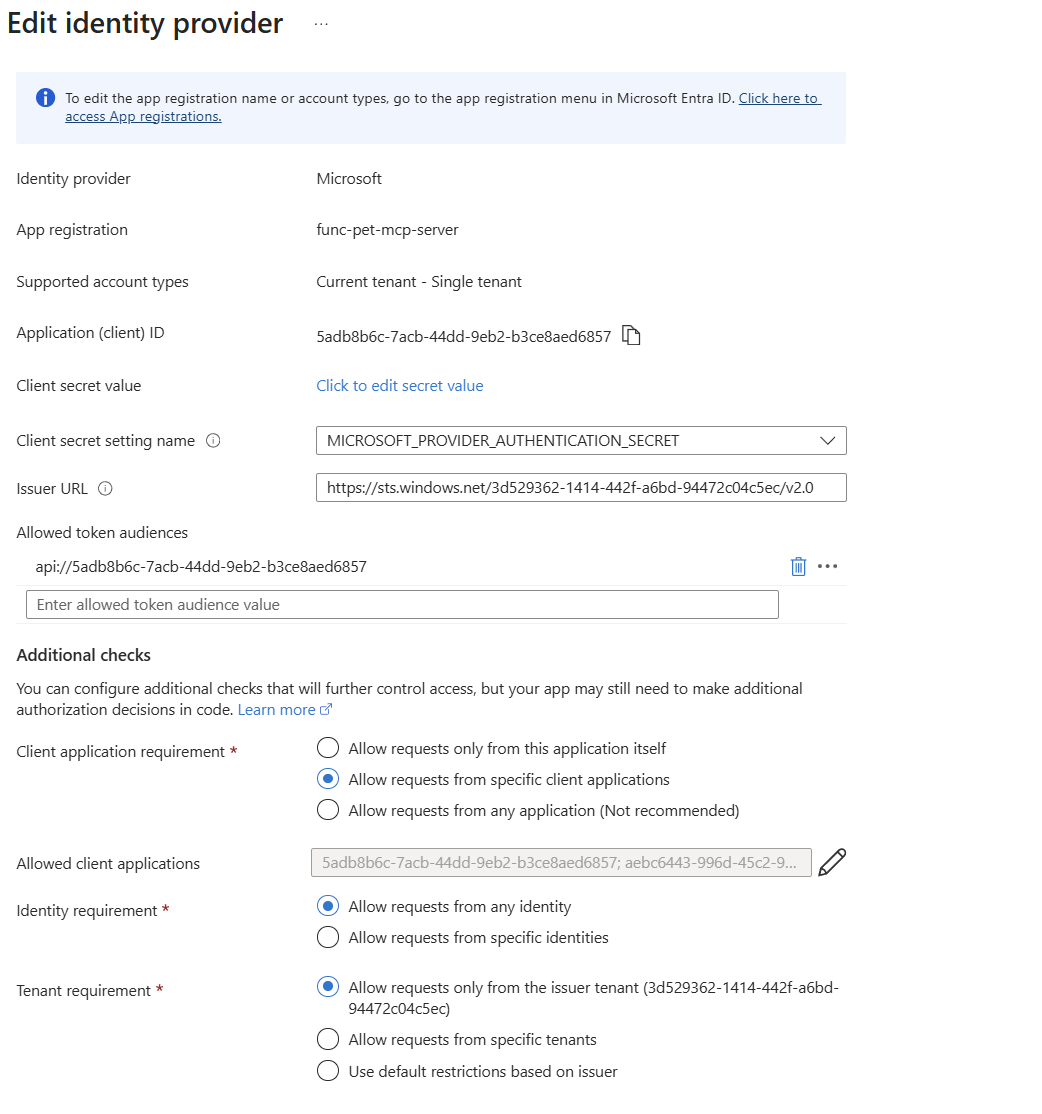
- The allowed token audiences are configured for you automatically when you enable Microsoft authentication.
- Client application requirement - add the client ID for Visual Studio Code, which is: aebc6443-996d-45c2-90f0-388ff96faa56
Now, go to the app registration that represents your Azure Function. Add the following redirect URIs.
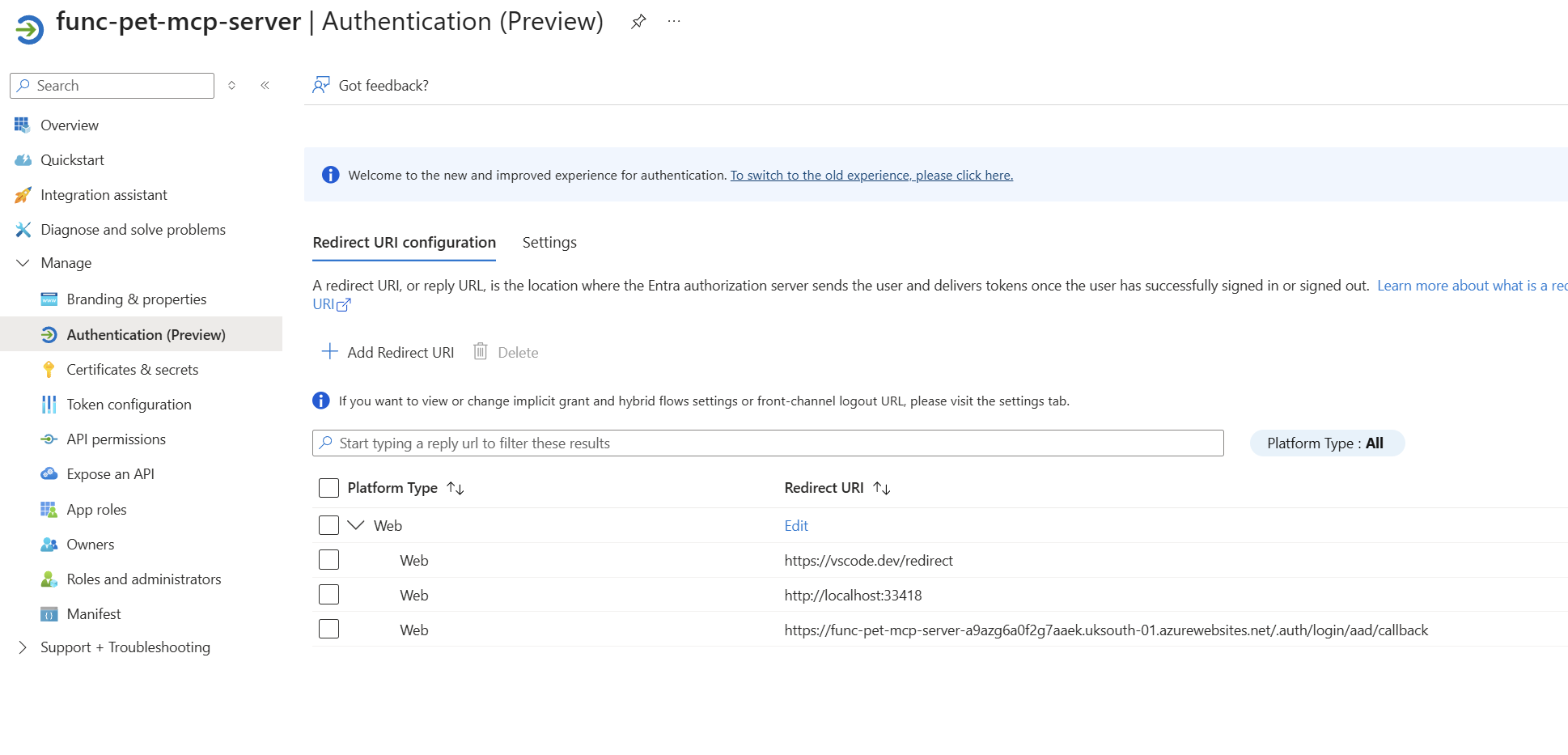
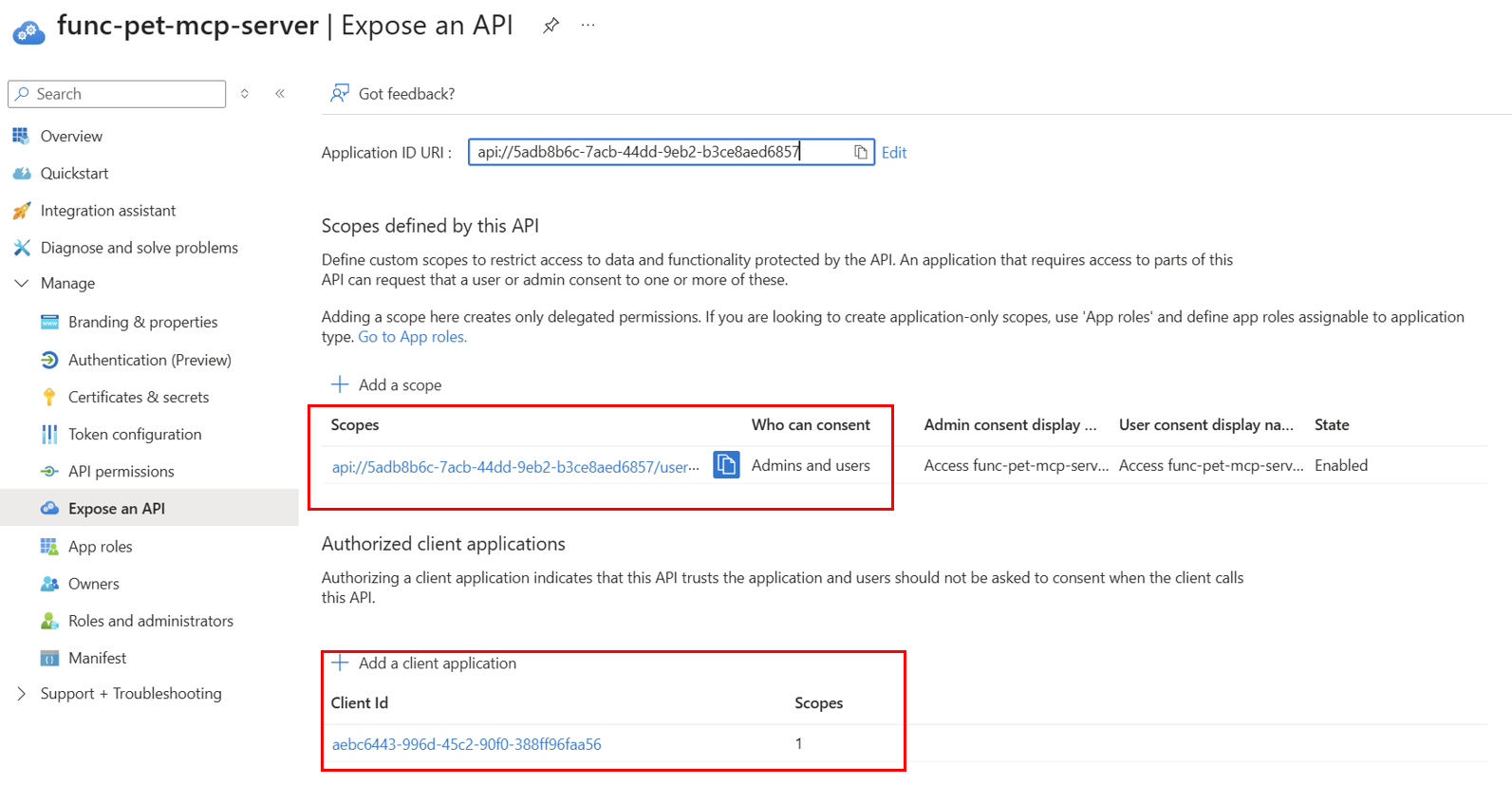
- Go into Expose an API. An existing scope should already exist. Copy this, as we will need it shortly. Again, add the Visual Studio Code Client ID for authorised clients. This means that the API (MCP server) in this case trusts the application and will not ask for consent when calling it.
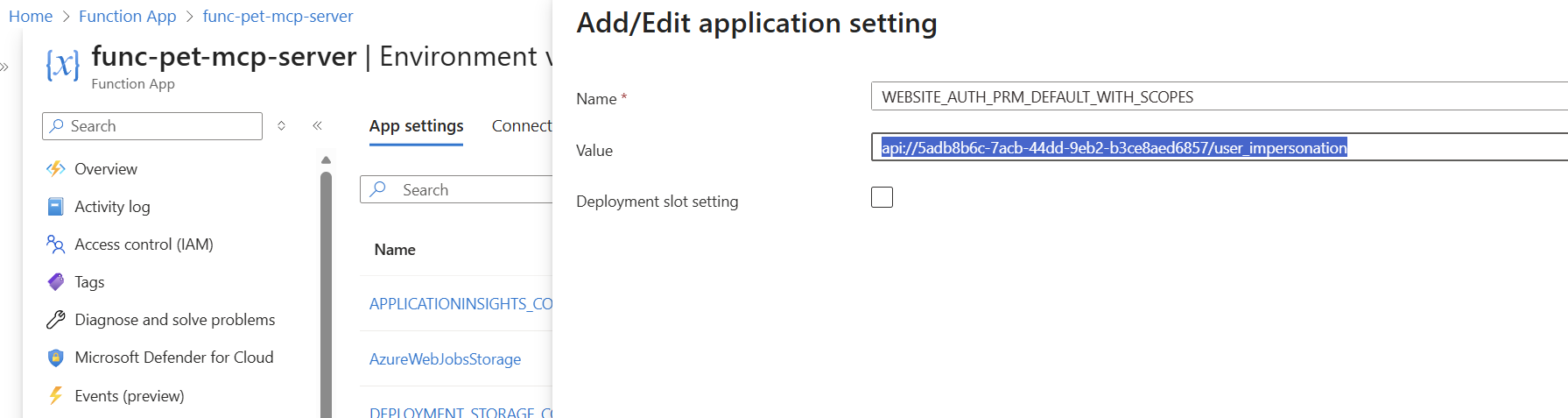
Go back to the Azure Function and add the following environment variable.
WEBSITE_AUTH_PRM_DEFAULT_WITH_SCOPES = The API scope you just copied. In my example: api://5adb8b6c-7acb-44dd-9eb2-b3ce8aed6857/user_impersonation
Finally, ensure that in the host.json file of your Azure Function, the webhookAuthorizationLevel is set to Anonymous. This removes the requirement for keys when calling the MCP server. You should configure it as Anonymous if you are using Microsoft Entra ID authentication, or if you have an MCP server that does not require any authentication (similar to Microsoft Learn, for example).
{
  "version": "2.0",
  "extensionBundle": {
    "id": "Microsoft.Azure.Functions.ExtensionBundle",
    "version": "[4.*, 5.0.0)"
  },
  "extensions": {
     "mcp": {
      "instructions": "This is a pet MCP server",
      "serverName": "PetMCPServer",
      "serverVersion": "2.0.0",
      "system": {
        "webhookAuthorizationLevel": "Anonymous"
      }
    }
  }
}
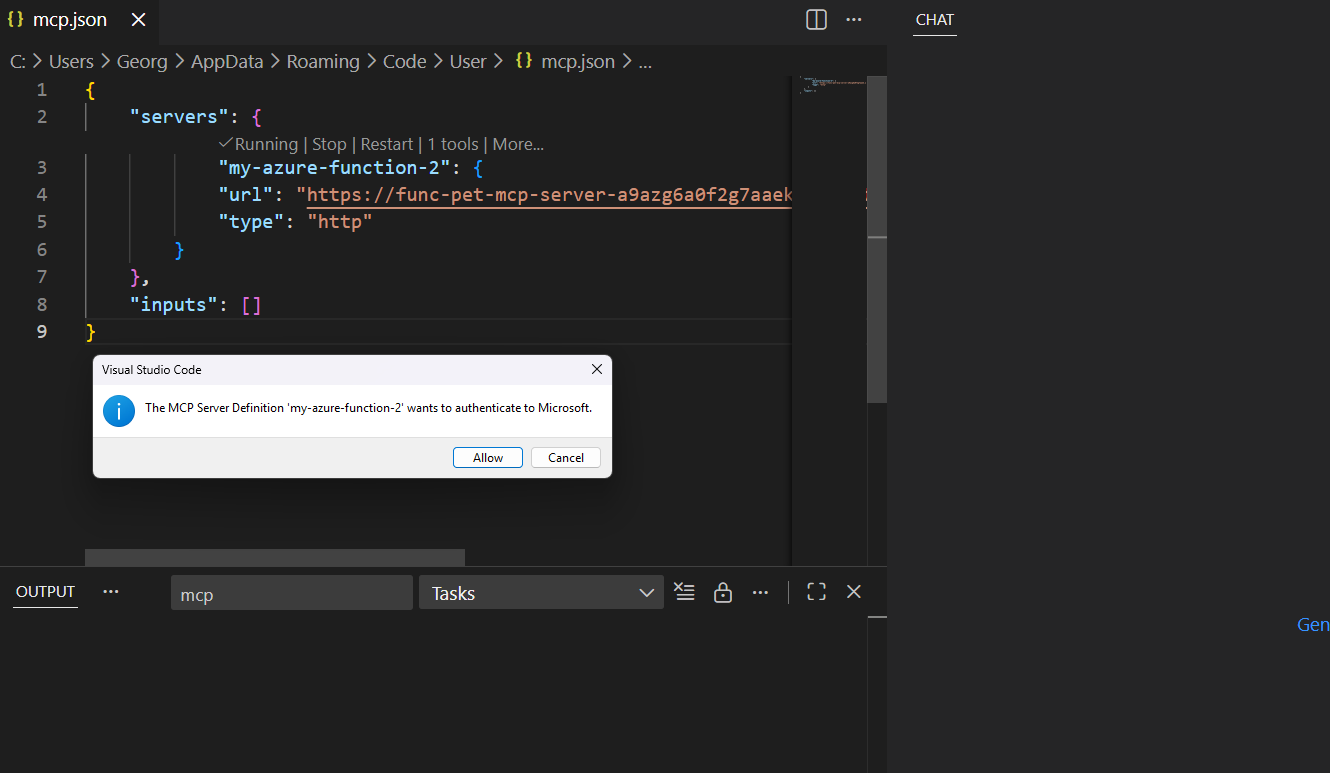
When starting the MCP for the first time, you will be prompted to authenticate with Microsoft Entra ID.
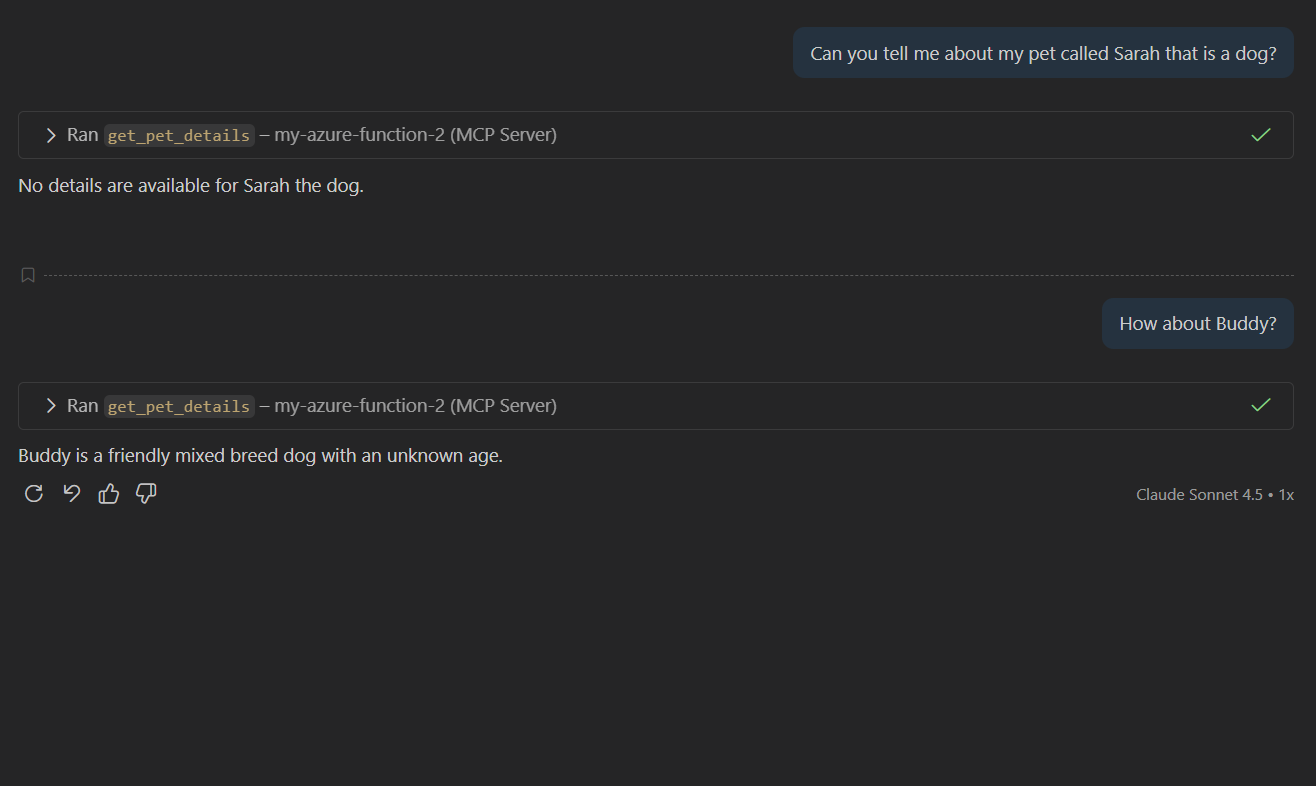
Let's ask some similar questions to confirm it's working.
What We Achieved
- Built a simple MCP server in Azure Functions, exposing the
get_pet_detailstool. - Tested locally on
localhostusing Azure Functions Core Tools and Visual Studio Code. - Deployed to Azure with the default API key configuration for secure access.
- Enabled Microsoft Entra ID authentication to replace API keys with identity‑based security.
- Configured Visual Studio Code as the trusted client, ensuring only authorised requests can call the MCP server.
- Validated the setup by authenticating and successfully invoking the tool through Entra ID.
In this walkthrough, we built and tested a simple MCP server with Azure Functions, deployed it to Azure, and then strengthened security by enabling Microsoft Entra ID authentication. By configuring Visual Studio Code as the trusted client, we ensured that only authorised requests can interact with the server’s tools, removing the need for API keys and relying instead on identity‑based access. This approach demonstrates how Azure Functions can seamlessly host MCP servers while integrating modern authentication, providing a solid foundation for extending with more complex tools and integrations.